
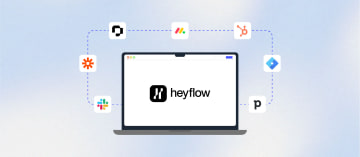
How to Connect a Funnel Builder With HubSpot







Trusted by 3,000+ marketers






Most teams connect their funnel builder to HubSpot and assume the job is done. But how that connection is built determines whether a high-intent lead reaches a sales rep in seconds or gets lost in a polling queue. The integration method, the depth of field mapping, and whether partial submissions are captured all shape what your sales team actually sees in HubSpot and how fast they can act on it.
Key takeaways
Middleware tools like Zapier introduce latency of 1–15 minutes per submission, which directly reduces lead qualification rates.
Shallow integrations lose conditional logic answers, calculated scores, and UTM data, leaving sales teams without the context they need to act.
Heyflow's native HubSpot integration creates contacts, deals, and companies from a single submission with real-time field mapping and no middleware required.
Partial submission capture in Heyflow lets you push incomplete leads into HubSpot and trigger re-engagement workflows automatically.
Why the Quality of Your Funnel-to-HubSpot Integration Matters
Most teams treat the funnel-to-CRM connection as a checkbox: leads go in, contacts come out. The reality is that integration architecture is one of the most direct levers on revenue — specifically because of what happens in the minutes after a lead submits.
A 2026 benchmark study by Blazeo across 573 businesses found that 74% of companies miss the five-minute response window entirely. Research from MIT and Harvard Business Review shows that responding within five minutes makes a lead 21 times more likely to qualify compared to a 30-minute delay. Every layer of middleware between your funnel and HubSpot adds latency. A Zapier chain with a 15-minute polling interval on the free tier can turn a high-intent lead into a cold one before a sales rep ever sees it.
Beyond speed, integration depth determines how much of your funnel's qualification work actually carries over into HubSpot. A basic integration creates a contact with a name and email. A deep integration maps conditional logic answers to custom HubSpot properties, calculates a lead score in the funnel and passes it to a deal field, captures UTM parameters in hidden fields and syncs them to HubSpot contact properties for attribution, and triggers a workflow the moment the record is created. The difference between these two outcomes is the difference between a sales team working from complete context and one working blind.
There is also the question of partial submits. When a user abandons a five-step funnel at step three, a shallow integration sends nothing to HubSpot. A funnel builder that captures partial submissions can push that partial contact record into HubSpot with the data collected so far, assign it a lifecycle stage like "Partial Lead," and trigger a re-engagement sequence automatically. For high-volume campaigns, this recovery alone can justify the cost of a dedicated funnel builder.
Native Integration vs. Zapier vs. Webhooks: Which Approach to Use
The choice between integration methods is not just a technical preference — it directly affects data latency, reliability, and the depth of what you can pass to HubSpot.
Zapier and Make (middleware): The most common starting point. Easy to set up, but the tradeoffs compound quickly at scale. Free and starter Zapier plans use polling intervals up to 15 minutes. Even paid plans introduce 1–5 minute delays. More critically, Zapier workflows fail silently under rate limits, meaning leads can disappear without any notification. A three-step Zap chain (submission → contact creation → deal creation → Slack alert) introduces three failure points. For campaigns generating hundreds of leads per day, this becomes a reliability risk, not just an inconvenience. As Heyflow's research on funnel builders with the most integrations notes, native integrations outperform third-party tools through faster data transfer, deeper feature access, and more reliable performance for business-critical systems.
Webhooks: A significant step up from Zapier in terms of speed and reliability. A webhook fires immediately on form submission, delivering data server-to-server in near real-time. The downside is setup complexity: you need to configure the payload structure, handle authentication, and build error handling. For teams with a developer resource, webhooks are a solid middle ground. For marketing teams without one, they create ongoing maintenance overhead.
Native integration: The strongest option for performance marketing teams. A native HubSpot integration built into the funnel builder requires no middleware, fires synchronously on submission, supports multi-object creation (contacts, deals, companies in a single trigger), and typically includes visual field mapping that non-technical users can maintain. When HubSpot properties change or new funnel variants are added, updating a visual field mapper takes minutes rather than hours of Zapier reconfiguration.
Method | Setup Complexity | Data Latency | Reliability at Scale | Field Mapping Depth | Multi-Object Support |
Zapier / Make | Low | 1–15 min | Moderate (silent failures) | Basic | Multi-step Zaps required |
Webhook | Medium–High | Near real-time | High (with error handling) | Custom | Possible with dev work |
Native Integration | Low | Real-time | High | Deep (visual mapper) | Built-in |
What Data Can You Pass From a Funnel Builder to HubSpot
The range of data a funnel builder can send to HubSpot depends on both the funnel tool's capabilities and the depth of its integration. Here is what a complete integration should support:
Standard contact fields: First name, last name, email, phone number. These map directly to HubSpot's default contact properties and are supported by virtually every integration method.
Conditional logic answers: If your funnel branches based on user responses — "Do you own or rent?" or "What is your monthly energy bill?" — those answers should map to custom HubSpot contact properties. This is where most shallow integrations fail. The qualification context that makes a lead actionable for sales is lost if these fields aren't mapped. Heyflow's conditional logic documentation specifically covers how to ensure all paths and input fields are correctly mapped to your CRM.
Calculated values and lead scores: Funnel builders with a calculation engine can compute a lead score before the data reaches HubSpot — based on answers, not just behavioral signals. This score maps to a custom HubSpot property and can immediately determine deal stage, owner assignment, and workflow routing. This is faster and more precise than relying on HubSpot's behavioral scoring, which requires multiple interactions to build.
UTM parameters and ad source data: UTM parameters must be captured via hidden input fields in the funnel and mapped to corresponding HubSpot contact properties. Without this, media buyers cannot see which campaigns drive qualified leads — attribution breaks at the funnel-to-CRM handoff. Once configured, UTM data passes automatically with every submission without any visible change to the user experience.
File uploads: Individual file upload links can be forwarded to HubSpot. If you need to collect multiple files, adding multiple upload blocks to the flow allows each to generate a separate link that maps to a distinct HubSpot field.
Original source tracking: HubSpot's Original Source property can be set via a hidden field in the funnel prefilled with the correct internal value (for example, PAID_SEARCH). This gives HubSpot the source context it needs for lifecycle reporting without requiring any manual input from the lead.
How to Connect Heyflow With HubSpot
Heyflow's native HubSpot integration connects directly from the flow editor without any middleware. The setup follows a clear sequence: connect your HubSpot account via OAuth, select the HubSpot object to create on submission (Contact, Deal, or Company), and map your funnel fields to the corresponding HubSpot properties using a visual field mapper.
The object selection step is where integration depth becomes visible. Most funnel builders only support contact creation. Heyflow lets you choose to create Contacts, Deals, or Companies from a single submission — meaning a completed funnel can simultaneously create a contact record and open a deal in the correct pipeline stage, without any additional Zapier steps. For sales teams, this means pipeline visibility from the first lead, not after a manual review process.
Field mapping in Heyflow pulls your HubSpot properties directly, so you select from your actual CRM property list rather than typing field names manually. This reduces mapping errors — a common source of the VALIDATION_ERROR: Property values were not valid error that occurs when a funnel's multiple choice option labels don't exactly match HubSpot's internal property values. The system label for each option in Heyflow must match the internal value in HubSpot precisely for dropdown and select fields.
For UTM and source tracking, the process requires setting up hidden input fields in the funnel to capture URL parameters, then mapping those fields in the response handler. The parameters then pass automatically with each submission. The full setup for UTM capture and HubSpot source property mapping is covered in Heyflow's integration and automation features.
If something goes wrong after setup, Heyflow sends an automatic email notification containing the flow ID, response ID, and the specific error returned by HubSpot — so you can diagnose field mapping issues without manually reviewing submissions.
Teams migrating from HubSpot's native forms will find the transition straightforward. Heyflow is designed as a direct alternative to HubSpot Forms for performance marketers who need conversion-optimized, multi-step funnels while keeping HubSpot as their CRM of record. If you want to explore the setup firsthand, you can try Heyflow free and connect your HubSpot account within minutes.
How to Trigger HubSpot Workflows From Funnel Submissions
Creating a contact in HubSpot is only half the job. The real automation value comes from triggering workflows the moment a lead arrives — routing them to the right sales rep, enrolling them in a nurture sequence, or sending an internal Slack alert for high-value submissions.
To trigger a HubSpot contact workflow based on Heyflow submissions, the recommended approach is to create a workflow in HubSpot that uses a contact property as its enrollment trigger — specifically a property that Heyflow sets on submission. For example, if Heyflow maps a "Lead Source" field to a custom HubSpot property with the value "Heyflow," you can build a workflow that enrolls any contact where that property is set. This fires immediately when the contact is created, without any delay.
For lead routing, conditional logic in the funnel can determine which deal pipeline or owner a lead should go to before the data reaches HubSpot. A solar funnel that asks about roof type and property ownership can route qualified homeowners to a high-priority pipeline and renters to a nurture-only sequence — all based on field mapping, without any manual sorting in HubSpot. This is the same principle behind agency lead generation workflows where multiple client pipelines need to receive correctly segmented leads from a single funnel.
For appointment booking, Heyflow supports redirecting to a HubSpot calendar after funnel completion, with lead data prefilled via URL variables. This means a qualified lead can book a meeting immediately after submitting, with their name and email already populated in the booking form — reducing friction at the highest-intent moment in the funnel.
Closing the Loop: From HubSpot Back to Your Ad Platforms
A funnel-to-HubSpot integration that stops at contact creation leaves the most valuable part of the data pipeline incomplete. For performance marketers running paid campaigns on Meta, TikTok, or Google, the conversion signal needs to travel from the funnel all the way back to the ad platform — and HubSpot is a waypoint in that chain, not the endpoint.
The closed-loop looks like this: the funnel captures a lead and fires a server-side conversion event to Meta CAPI or TikTok Events API. HubSpot receives the lead data with full field mapping and source attribution. The ad platform receives the quality signal and optimizes future delivery toward audiences that match the converting profile. Breaking any link in this chain degrades the entire system. If the funnel can't fire server-side events, the CRM integration alone cannot compensate — the ad platform never learns which leads are actually valuable.
Heyflow supports native server-side tracking for Meta CAPI, TikTok Events API, and Bing CAPI — alongside the native HubSpot integration. This means the funnel handles both the CRM handoff and the ad signal in a single submission event, without requiring a separate GTM server container or custom API configuration. For performance marketers running campaigns where lead quality varies significantly by audience segment, this combination is what enables genuine closed-loop optimization. You can explore how this works in practice on the performance marketer solution page.
If you are running paid campaigns and want to see how Heyflow's HubSpot integration and server-side tracking work together, start building with Heyflow and connect your first flow to HubSpot in the same session.
FAQ
Do I need HubSpot Professional or Enterprise to use a funnel builder integration?
No. Heyflow's native HubSpot integration works with HubSpot's free CRM tier and above. You can create contacts, deals, and companies from funnel submissions without a paid HubSpot plan. Workflow triggers require HubSpot's Starter plan or higher, since HubSpot gates automation to paid tiers.
Can I create both a HubSpot contact and a deal from a single funnel submission?
Yes, with Heyflow's native integration. When configuring the response handler, you select which HubSpot object to create — Contact, Deal, or Company. You can set up multiple response handlers for the same flow, so a single submission creates a contact and simultaneously opens a deal in the correct pipeline stage.
What happens if a lead already exists in HubSpot when a funnel submission comes in?
HubSpot's deduplication logic uses email address as the primary identifier. If a contact with the same email already exists, HubSpot will update the existing record rather than create a duplicate. Custom properties mapped from the funnel will be updated with the new submission values.
How do I pass UTM parameters from my funnel to HubSpot contact properties?
You need to add hidden input fields to your Heyflow flow configured to capture URL parameters (utm_source, utm_medium, utm_campaign, etc.). Once set up, map those hidden fields to the corresponding HubSpot contact properties in the response handler. UTM data then passes automatically with every submission without any visible change for the user.
Can I send partial funnel submissions to HubSpot when a user drops off mid-funnel?
Heyflow captures partial submissions as users progress through the funnel, even if they don't reach the final submit screen. This data can be sent to HubSpot, allowing you to create a contact with whatever fields were completed and trigger a re-engagement workflow. This is a significant advantage over standard form tools, which only send data on final submission.
My HubSpot integration is returning a VALIDATION_ERROR — what does that mean?
This error means the value being sent from Heyflow doesn't match what HubSpot expects for that property. The most common cause is a mismatch between the system label of a multiple choice option in Heyflow and the internal value of a dropdown property in HubSpot — they must be identical. It can also occur when a numeric HubSpot property receives a value that contains text. Check your field mapping and ensure option labels match HubSpot's internal values exactly.
Recommended articles
The 6 Best Lovable Alternatives for High-ROAS Funnels (2026)
Lovable is great for building apps, but not for funnels. Compare 6 Lovable alternatives, including Heyflow, built for high-ROAS forms and sign-ups.
Read more
Conversion Rate Optimization Tools: The 8 Best Platforms 2026
Most CRO lists compare tools built for different jobs. See which of 8 conversion rate optimization tools fits a paid-traffic funnel. Compare now.
Read more
The 7 Best Lead Qualification Tools in 2026
Your ad spend keeps climbing, but your sales team keeps complaining about the same thing: too many leads who were never going to buy. Marketing hits its volume targets while reps burn hours qualifying contacts who should have been filtered out before they ever reached a CRM record. Closing that gap matters if you want ROAS and pipeline velocity moving in the same direction. So which of these seven tools actually closes that gap for your team?
Read more