
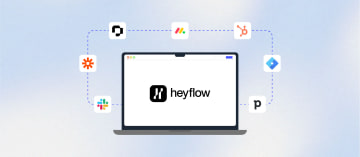
Connect Your Funnel Builder With Personio Using Heyflow







Trusted by 3,000+ marketers






Paid recruiting campaigns on Meta or TikTok expose a real limitation in Personio's native application form: no conditional logic, no mobile-optimized progression, and no way to recover partial submissions. Connecting a funnel builder to Personio solves each of these problems, but the method you choose determines how much middleware cost, maintenance overhead, and data loss risk you carry into every campaign.
Key takeaways
Personio only creates applicants via API for published job postings, so draft or unlisted roles will silently block submissions.
Zapier-based connections introduce polling delays, unreliable file transfers, and compounding middleware costs across multiple client accounts.
Heyflow's native Personio integration transfers applicant data and CV uploads instantly, with no middleware, and maps UTM parameters directly to applicant records.
Why Recruiting Teams Use a Funnel Builder Instead of Personio's Native Career Page
Personio's built-in application form works well for job board traffic, but it was not designed for paid social campaigns. When candidates arrive from a Meta or TikTok ad on a mobile device, a static multi-field form creates immediate friction. There is no conditional logic to skip irrelevant questions, no step-by-step progression that matches how people engage on mobile, and no way to capture partial data if someone abandons mid-application.
The practical result is a high drop-off rate before submission. A mobile-first interactive funnel, built with progressive disclosure and role-specific qualification logic, addresses each of these friction points directly. For teams running paid recruiting campaigns, the funnel is where cost-per-applicant is won or lost, and the ATS integration is what ensures every completed application reaches the recruiter instantly.
Heyflow's Native Personio Integration: How It Works
Heyflow connects directly to Personio with no middleware required. The integration is available inside the Connect tab of any flow and sits under the Recruiting category alongside Recruitee and softgarden. When a candidate completes your funnel, their data is pushed to Personio immediately, creating a new applicant record without any manual steps.
This is a native, server-side connection. There is no Zapier workflow to maintain, no polling delay, and no additional monthly cost per client. For social recruiting agencies managing multiple Personio accounts, this eliminates what can easily amount to hundreds of dollars per year in middleware subscriptions, plus the ongoing maintenance burden when field mappings break or API tokens expire. You can try Heyflow and set up the Personio connection in under 30 minutes.
Connecting Your Personio Account
To connect Heyflow with Personio, open your flow in the Heyflow editor and navigate to the Connect tab. Select Personio from the Recruiting integrations list. You will be prompted to enter your Personio Company ID and API Access Token. Both are found in your Personio account under Settings, then API, then Integrations. Once authenticated, Heyflow pulls in your available Personio fields for mapping.
One important constraint from the Personio side: applicants can only be created via the API for job postings that are currently published. If a job posting is set to draft or unlisted in Personio, the integration will not be able to assign applicants to it. Make sure the relevant positions are live before activating your funnel.
Mapping Funnel Fields to Personio
Field mapping is handled inside the Heyflow Connect tab after authentication. You match each field collected in your funnel to the corresponding Personio applicant attribute. The required fields are First Name, Last Name, Email, and Job Position ID. Beyond those, you can map optional fields including phone number, cover letter or message, salary expectations, availability date, and recruiting channel ID.
For custom Personio applicant attributes, you will need the exact attribute name as it appears in your Personio settings. Heyflow passes the value to that attribute name directly, so the naming must match precisely. This is worth double-checking during setup, as a mismatched attribute name is the most common cause of incomplete applicant records.
Funnel Field | Personio Applicant Field | Required |
First name input | First Name | Yes |
Last name input | Last Name | Yes |
Email input | Yes | |
Job Position ID (static or dynamic) | Job Position ID | Yes |
Phone input | Phone | No |
Text area / message | Cover Letter / Message | No |
File upload (CV, portfolio) | Document | No |
Hidden field (UTM source) | Recruiting Channel ID or custom attribute | No |
Assigning Applicants to a Specific Job Posting
Every applicant created via the Personio API must be assigned to a published job posting using the Job Position ID. To find this ID, open Recruiting in your Personio sidebar, navigate to Jobs, and open the relevant position. The numeric ID appears in the URL, for example 2028881.
If your funnel covers a single role, enter the Job Position ID as a static value directly in the Heyflow Personio integration settings and map it to the Job Position ID field. No visible form field is needed for the candidate.
If your funnel covers multiple roles, for example a general application flow where candidates select their preferred position, use a Multiple Choice block and set the Job Position ID as the System Label for each answer option. When the candidate selects a role, Heyflow sends the corresponding numeric ID to Personio automatically, routing the applicant to the correct job posting without any additional configuration.
Passing UTM and URL Parameters to Personio
Tracking which ad campaign, audience, or channel generated each applicant is critical for optimising recruiting spend. Heyflow handles this through hidden input fields. Set up a hidden field in your funnel to capture each UTM parameter you want to track (utm_source, utm_medium, utm_campaign, for example), then map those hidden fields to the corresponding Personio attributes in the Connect tab. The values are captured from the URL automatically when a candidate lands on your funnel and are passed to Personio with the application, without any visible interaction from the candidate.
This gives your recruiting team full attribution data inside Personio, and it gives your media buyers a direct line from ad spend to applicant quality when they review which campaigns are generating hires versus just clicks. For a deeper look at how Heyflow's integrations and automation work across the full recruiting stack, the features page covers the complete picture.
Integration Methods Compared
Teams connecting a funnel builder to Personio typically choose between three approaches. The right choice depends on the tools already in use and the volume of applicants being processed.
Method | Setup Time | Middleware Cost | Transfer Speed | File Upload Support | Maintenance |
Native integration (Heyflow) | 15-30 minutes | None | Near-instant | Yes | Low |
Zapier workflow | 1-3 hours | $20-$100+/month | 1-15 minute delay | Limited | High |
Custom API integration | Days (developer required) | None (dev cost) | Configurable | Yes | Medium |
The Zapier approach is the most common workaround for funnel builders without a native Personio connection. It works, but it introduces real operational risk: Zaps break when field names change, rate limits cause queued submissions, and file transfers are unreliable. For an agency managing 10 or more clients, the compounded middleware cost and maintenance time becomes a significant overhead. The native integration removes all of this.
Recruiting Funnel Features That Improve Applicant Quality Before Data Reaches Personio
The quality of what arrives in Personio depends entirely on what happens inside the funnel. Heyflow includes several features specifically relevant to recruiting that most generic form builders do not offer.
Phone validation and OTP verification ensure that applicants provide a real, working phone number before their data is submitted. On Meta and TikTok campaigns in particular, bot submissions and low-quality leads are common. OTP verification filters these out at the funnel level, so your Personio pipeline contains only verified applicants.
Conditional logic lets you build role-specific qualification paths. A candidate selecting a warehouse position sees different follow-up questions than one selecting a customer service role. Disqualification logic can route candidates who do not meet minimum requirements to a polite dead-end screen, keeping unqualified submissions out of Personio entirely.
Partial submit capture works in the opposite direction: it saves applicant data even when someone abandons the funnel before completing it. This is particularly valuable for hard-to-fill roles where every interested candidate matters. Recruiters can follow up with partial submits directly, converting abandoned applications into hires.
File upload support up to 2GB means CVs, portfolios, and certificates transfer reliably to Personio. This is a common failure point with Zapier-based connections, where file handling is inconsistent and often requires separate workarounds.
For teams building out their full recruiting stack, the Leantree case study shows how one of Germany's largest social recruiting agencies uses Heyflow to run high-volume recruiting funnels for employers across multiple industries, with direct ATS integration as a core part of the workflow.
Closing the Ad Tracking Loop for Recruiting Campaigns
Most content about funnel-to-Personio integration focuses on the data transfer itself and misses the upstream impact on ad performance. When your funnel has server-side conversion tracking enabled, Meta and TikTok receive high-quality signals that include hashed applicant data such as email and phone. This allows the ad platforms to match conversions at a much higher rate than pixel-only tracking, and to optimise delivery toward the audiences most likely to complete an application rather than just click an ad.
Heyflow sends conversion data server-side to Meta via the Conversions API and to TikTok via the Events API. This is particularly important for recruiting campaigns targeting mobile users, where browser-based pixel tracking is increasingly unreliable due to iOS privacy restrictions. The result is more accurate campaign reporting and better algorithmic optimisation, both of which reduce cost-per-qualified-applicant over time.
If you are running paid recruiting campaigns and want to see how this fits together in practice, the social recruiting use case page covers the full workflow from ad click to ATS entry. You can also get started with Heyflow directly and connect to Personio within your first session.
Troubleshooting the Personio Integration
If a submission fails to create an applicant in Personio, Heyflow sends an automatic email notification containing the flow ID, response ID, and the error description returned by Personio. The most common causes are a mismatched custom attribute name, a Job Position ID that references an unpublished or archived role, or an expired API Access Token in Personio.
Check that the job posting is currently published in Personio before testing. Verify that custom attribute names in the field mapping exactly match the attribute identifiers in your Personio settings, including capitalisation. If the API token has been regenerated in Personio since the integration was set up, update it in the Heyflow Connect tab. For a broader overview of how Heyflow handles response routing and integration errors, the analyze and optimize features page covers the monitoring tools available.
FAQ
Does Heyflow have a native Personio integration, or do I need Zapier?
Heyflow has a native, direct integration with Personio that requires no Zapier or Make workflow. You connect your Personio account inside the Heyflow Connect tab using your Company ID and API Access Token, map your funnel fields to Personio applicant attributes, and applicant data is transferred automatically the moment a candidate submits. There is no middleware cost and no polling delay.
Can I transfer CV file uploads from my Heyflow funnel to Personio?
Yes. Heyflow supports file uploads up to 2GB and transfers documents to Personio as part of the native integration. You map the file upload field in your funnel to the document field in the Personio integration settings. This is a common failure point with Zapier-based connections, where file handling is unreliable, so the native integration handles this more consistently.
How do I route applicants to different Personio job postings from a single funnel?
Use a Multiple Choice block in your Heyflow funnel and set the Job Position ID for each role as the System Label on the corresponding answer option. When a candidate selects a position, Heyflow automatically sends the matching numeric ID to Personio, assigning the applicant to the correct job posting. The Job Position ID is found in the URL when you open a published job in the Personio Recruiting section.
Can I pass UTM parameters from my recruiting funnel into Personio?
Yes. Set up hidden input fields in your Heyflow funnel to capture UTM parameters from the landing URL, then map those hidden fields to custom applicant attributes in Personio through the Connect tab. The parameters are captured automatically from the URL when a candidate arrives and are included in the applicant record without any visible interaction. This gives recruiters full campaign attribution data inside Personio.
What happens if the Personio integration fails for a submission?
Heyflow sends an automatic email notification when an integration error occurs, including the flow ID, response ID, and the specific error message returned by Personio. The most common causes are an unpublished job posting referenced by the Job Position ID, a mismatched custom attribute name in the field mapping, or an expired Personio API token. The response data is retained in Heyflow regardless of the integration error, so no applicant information is lost.
Which Heyflow plan includes the Personio integration?
The Personio integration is available on Heyflow's paid plans. You can check the current plan availability on the Heyflow pricing page. If you want to test the setup before committing, start building with Heyflow and explore the Connect tab integrations during your trial period.
Recommended articles
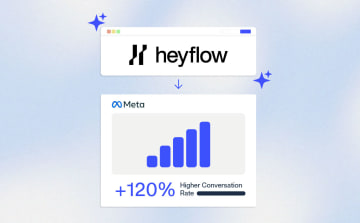
How to Increase Your Meta Ads CVR With the Heyflow AI Funnel Builder Platform
A flat Meta Ads conversion rate is usually a post-click problem. See three ways to fix your funnel and tracking with Heyflow, from full AI automation to manual control.
Read more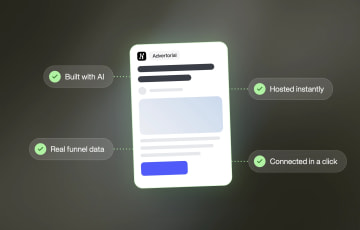
How to Create an Advertorial Landing Page That Sells (With Examples)
Learn how to create an advertorial landing page that sells, with examples by vertical, built by Heyflow’s AI and connected to your funnel in a click.
Read more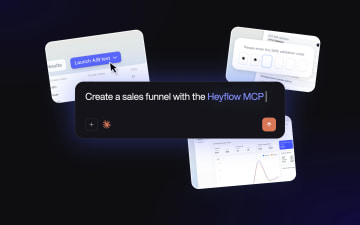
MCP: The Easiest Way to Create a Sales Funnel With AI
Prompt a sales funnel through MCP and it's hosted the moment it's built, connected in a click. That's what makes it the easiest way to build one with AI.
Read more