
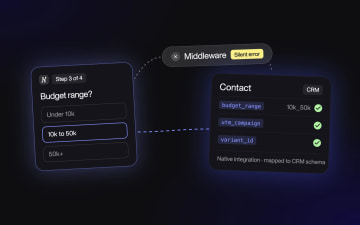
Native CRM integrations vs Zapier for lead funnels: where leads leak between submit and CRM







Trusted by 3,000+ marketers


A native CRM integration beats Zapier for the CRM write in a production lead funnel, because the tool writing the record knows the CRM's schema and keeps mapping, attribution and deduplication intact. Zapier stays the right tool for fanning one submission out to Slack, Sheets or email, and for funnels where a missed lead costs little. Audit the hop between submit and CRM record first, then decide on what you find.
Key takeaways
Most lead leaks happen after a "successful" Zap run: labels sent instead of internal values, missing UTM and variant IDs, duplicate contacts and silent errors.
Run the seven-point audit on the last 30 days of funnel contacts before deciding anything; a 0 on attribution, identity or error handling is a reason to act.
Use a hybrid pattern: the native integration writes the system-of-record entry, and Zapier or a webhook handles secondary notifications.
Design the funnel backwards from the CRM schema, so every question and branch writes to a property sales actually uses.
Five ways form data reaches HubSpot, and what each one controls
Form data reaches HubSpot through a native form, a CMS plugin, a custom API build, middleware such as Zapier, or a funnel builder with a native connector, and each splits control differently between your team and third-party code. That split decides where failures surface, and where failures surface decides whether anyone notices them before sales does.
The first path is a native HubSpot form. HubSpot's developer documentation on forms lists three ways to add one: the default form module, a form field inside a custom module, or the form embed code. To embed a HubSpot form on a website outside HubSpot's CMS, you paste the embed code, which loads a HubSpot-hosted JavaScript file. That script renders the form and handles submission. The trade-off is styling: forms added through embed code come with customization limits that the docs spell out. HubSpot's product page for its form builder says everyone who fills out a form is added to your CRM automatically. Whether a given submission is also tied to the visitor's earlier website activity depends on your setup, so check that in HubSpot's documentation rather than assuming it.
The second path is a CMS plugin. A HubSpot form integration on WordPress usually means one of two setups. In the first, a HubSpot-provided plugin embeds HubSpot forms on your pages; confirm how it does that in HubSpot's own documentation. In the second, a third-party form plugin pushes its submissions to HubSpot through the API. That setup gives you the plugin's design tools, but you also inherit the plugin's field mapping.
The third path is a custom build on the HubSpot form API. "The API" can mean more than one integration route, so don't assume a custom build preserves attribution just because the contact shows up. Put three questions to your developers:
Does the build submit through a forms endpoint, or does it create and update contacts directly?
Does it pass the visitor's tracking cookie and page context with each submission?
Where do you check that a test lead kept its original source?
Have them confirm each answer against HubSpot's API documentation, not from memory. If nobody can show you a test contact with its source history intact, treat that build's source data as unverified until someone can.
The fourth path is middleware such as Zapier. A trigger fires in your form tool, and an action creates or updates the record in HubSpot. All mapping lives in the Zap editor.
The fifth path is a third-party form or funnel builder with a native connector to the CRM. The builder owns the UX. The connector reads your CRM properties and writes to them directly.
Path | Who controls the UX | Who controls field mapping | Where failures surface | Who maintains it |
|---|---|---|---|---|
Native HubSpot form (module or embed code) | HubSpot, with styling limits | HubSpot, by design | HubSpot form submissions and contact timeline | Marketing ops |
CMS plugin pushing submissions | Plugin vendor | Plugin settings | Plugin log, if it keeps one | Web team or plugin vendor |
Custom build on the Forms or CRM API | Your developers | Your code | Wherever your developers log errors | Engineering |
Middleware (Zapier) | Your form tool | The Zap editor | Zap history and the Zap owner's email | Whoever built the Zap |
Funnel builder with native CRM connector | Funnel builder | Connector, mapped to CRM schema | Builder's integration log and CRM | Growth or marketing ops |
In this table, a native CRM integration is any path where the tool writing the record knows the CRM's schema: property names, types and allowed values. Middleware only knows what you typed into each mapping box.
Each path also moves personal data through a different set of systems. For every system in the chain, middleware included, find out which GDPR obligations apply and where the lead data is stored. If it matters for your contacts, confirm whether the data stays on EU servers. Write the answer down before you change anything.
Native vs Zapier: the seven-point failure-mode audit
Run seven checks on your current setup before deciding anything: field mapping, attribution, identity, partial submissions, error handling, ownership and cost. Native connectors can fail some of them too; the audit scores the record, not the tool. For each check, pull the contacts created by your funnel in the last 30 days and compare them against the submission count in your form tool for the same window.
1. Field mapping fidelity
Your funnel asks a budget_range question with the option label "10k to 50k". In HubSpot, budget_range is a dropdown property whose internal value is 10k_50k. If the CRM expects the internal value and receives the label, the write may fail and the Zap step errors, or the stored value may not match any option. The worse outcome is that someone remapped the answer into a single-line text property to make the errors stop. Now the routing workflow that filters on budget_range never fires.
Multi-select answers break the same way. Multiple-checkbox properties expect values joined with a specific delimiter, and a form tool that sends its own default list format can produce an error or a single unusable value. Check the property type documentation for the exact format before you map the field. Date properties also have their own API format requirements; test them with a real submission instead of assuming the form's date string will be accepted.
To detect it, filter funnel contacts where budget_range is unknown and compare that count to submissions where the budget question was answered. Any gap is a mapping failure. To fix it, map to internal values rather than labels, or use a connector that pulls option lists from the CRM schema.
2. Hidden fields and attribution
You capture utm_source, utm_campaign and gclid in hidden fields on step one of a multi-step funnel. The parameters drop when the visitor reloads step three. Or the hidden fields were added after the Zap was built, and nobody remapped them. Open the Zap editor and confirm that every field added since launch is mapped to a CRM property.
There's a second layer to test. A contact created through the CRM API may have no link to the visitor's browsing session. Check whether those contacts show the original source you expect. If they don't, your paid campaign may get no credit in HubSpot's attribution reports, even when the UTM properties are filled. Treat this as a hypothesis to confirm in your own portal, not an assumption.
If you run A/B tests, the variant ID is a hidden field too. Without a variant_id property on the contact, you can only score tests on submit rate, not on qualified pipeline.
To detect it, filter funnel contacts created after the campaign launched where utm_source is unknown, then spot-check their source properties against the campaign that drove them. If paid-traffic contacts show a non-paid source, attribution is breaking somewhere in the hop. To fix it, persist parameters across every step and map every hidden field. Check HubSpot's documentation for any visitor-tracking identifier it supports for linking a submission to a browsing session, and if your connector can send that identifier, confirm with a test submission that it does.
3. Identity and deduplication
The identifier your CRM matches on decides whether a submit updates an existing contact or creates a new one. In a HubSpot form integration, that identifier is often the email address; confirm which identifier your portal matches on before you test. Two scenarios break the match.
In the first, the Zap's HubSpot step only creates contacts, and a returning visitor submits with an email that already belongs to a contact. Depending on how the CRM handles the conflict, the step errors or creates a duplicate. Either way, that visitor's new answers, often the ones showing higher intent, don't land on the record sales is working.
In the second, the email answer was mapped into a custom work_email property instead of the default email property. If your portal matches on the default email, the CRM has nothing to match on, so every submit can create a new contact.
To detect it, check HubSpot's duplicate management tool (availability depends on your tier), search Zap history for errors that mention an existing contact, and submit twice with the same email to see what happens. To fix it, use a create-or-update action keyed on the identifier your portal matches on, and trim whitespace and lowercase email values before they're sent.
4. Partial and abandoned submissions
A visitor answers company size and budget, then quits at the email step. Most middleware triggers fire only on a completed submission, so that zero-party data never reaches the CRM. Some funnel tools can send partial data; if yours does and the Zap fires on every update, you get one contact per step.
To detect it, compare step-level drop-off in your funnel analytics with what's in the CRM. To fix it, set a written policy: either partials stay in the funnel tool, or they write to a separate property or list so sales doesn't treat them as leads. Whichever tool you use, test with an abandoned session how partial data is stored and when it is sent, before you connect it to the CRM.
Storing partial data is still storing personal data. Ask what consent you collected at that step and what GDPR obligations apply, and find out where each system in the chain keeps the record.
5. Error handling
In Salesforce, an admin adds a validation rule that requires Phone on Lead. Your funnel made phone optional, so every lead without a phone number fails on insert. In HubSpot, the same thing happens when a dropdown gets a new option label that the Zap doesn't send.
The key question is where the error goes: Zapier sends error notifications to the account that owns the Zap. Some plans include automatic replay of failed steps, so check what yours covers. If the owner's inbox filters those emails, nobody sees them.
To detect it, filter Zap history to errored runs for the last 30 days and count them; for native connectors, read the integration log. The fix: alerts to a shared channel, failed payloads stored where you can replay them, and a weekly count reconciliation.
6. Ownership
The Zap was built in a contractor's account, or a former employee authorized the HubSpot connection and revoking their user broke it. A teammate can also pause a Zap while debugging and forget to turn it back on. Each of these stops records from arriving, and nothing changes on the landing page to warn you.
To detect it, list every Zap that touches your CRM and note who owns it and which user authorized each app connection. To fix it, move connections to a service account, name an owner in writing, and submit a test lead every week.
7. Cost model at volume
Zapier counts tasks per successful action, and plan tiers set your monthly allowance. Check Zapier's current pricing and plan details before you model this rather than relying on numbers from memory.
Here's a hypothetical worked example. Suppose your funnel gets 2,000 submits a month, and the Zap runs four action steps per submit: update the contact, create a deal, post to Slack, and add a row to Sheets. That's 8,000 tasks a month before any replays. If you double paid spend, the task count doubles with it. A native connector usually prices by seat or plan rather than by submission, so its cost doesn't scale the same way.
The copyable audit checklist
Score each item 0 (fails), 1 (partial) or 2 (passes). It works for HubSpot, Salesforce, Pipedrive or any other CRM with typed properties.
Field mapping: every dropdown and multi-select answer lands as a valid internal value in a typed property. Test by filtering funnel records where routing properties are empty.
Attribution: every record has UTM values, click ID, landing page and variant ID, and the CRM's source field reflects the campaign. Test by filtering records with empty utm_source and spot-checking source properties on paid-traffic contacts.
Identity: a returning visitor updates the existing record, and no records are missing the identifier your CRM matches on. Test by submitting twice with the same email.
Partials: a written policy exists, and the CRM matches it. Test by abandoning the funnel at the email step.
Errors: failures alert a shared channel, and failed payloads can be replayed. Test by sending an invalid dropdown value.
Ownership: every connection runs on a service account with a named owner. Test by listing connection authorizers.
Cost: you've modeled monthly cost at double your current volume. Test with your current plan's documented limits.
Any 0 on items 2, 3 or 5 is a reason to act, whatever the total. Those three decide whether your test results and your routing can be trusted.
When Zapier is the right answer
Zapier is the right answer for low-volume or experimental funnels, for validating a new offer, for fanning one submission out to several apps, and for systems your form builder can't reach natively. A native connector won't replace it for all of these jobs:
Low-volume or experimental funnels where a missed lead costs little and speed matters more.
Validating a new offer before you invest in integration work. If the offer dies in two weeks, you've spent ten minutes.
Fanning one submission out to several apps, such as a Slack alert, a Google Sheets log, an email tool and a calendar invite.
CRMs or internal tools that have no native connector from your form builder.
For production lead funnels, use a hybrid pattern. The native integration writes the system-of-record entry to the CRM, and Zapier or a webhook handles the secondary notifications. If a Slack alert fails, nobody loses a lead. If the CRM write fails, you do.
So the Zapier alternative you need is for one job, the CRM write, while Zapier keeps the jobs it does well.
Design the funnel backwards from the CRM schema
Start with the properties sales uses to route and score leads, then build the questions, so every question and every branch writes to a defined property. Treating question design and CRM property design as one project is the biggest CRO payoff in this whole decision.
Ask sales ops which properties actually drive their work. Typically that's lifecycle stage, contact owner, a qualification tier, and one or two fit signals such as company size or budget. Then apply one rule: every question and every conditional branch writes to a defined property. If a question has no destination, cut it or give it one.
Here's a worked example of a three-branch qualification flow feeding HubSpot. Step one asks team size, and the answer writes to company_size_band with internal values 1_10, 11_200 and 201_plus. Conditional branching takes it from there.
Branch | Follow-up questions | Properties set | Workflow triggered |
|---|---|---|---|
201 or more | Implementation timeline, security review needed | lead_tier = enterprise, lifecycle stage = salesqualifiedlead | Rotate owner among enterprise AEs, create a call task |
11 to 200 | budget_range, primary use case | lead_tier = mid_market, lifecycle stage = marketingqualifiedlead | Send a demo booking email, notify the mid-market queue |
1 to 10 | Primary use case | lead_tier = self_serve, lifecycle stage = lead | Enroll in a product-led nurture sequence |
Each branch asks only what its route needs. The enterprise lead never sees the budget question, and the small team never sees the security question. That's where lead qualification velocity comes from: the record arrives already sorted, so routing happens on creation instead of after a rep reads the notes.
The same answers can steer your ad spend. The qualification answers that set lead_tier should also decide which button fires the server-side conversion event to Meta, so the ad platform learns from the leads sales accepts rather than from every submit. In Heyflow, the Meta Conversions API is part of the Scale plan.
Progressive disclosure shapes the steps. Show one or two questions per step so each screen asks for little effort, and save the email field for after the visitor has invested a few answers. This is zero-party data collection with a clear purpose: every answer lands in a property that someone downstream uses.
You can build this with the HubSpot form builder, but check your tier. HubSpot's forms product page lists conditional logic, dynamic fields, form shortening and multi-step forms as premium features, which is why most published HubSpot form examples are single-step contact forms.
A funnel builder with a native connector is the other route. In Heyflow's multi-step funnels, each step can map to a CRM property through a native connector. Heyflow has 50+ native integrations: HubSpot, Pipedrive, Zoho CRM, HighLevel and ActiveCampaign on every plan, Salesforce from the Scale plan, plus Make on every plan and webhooks from the Growth plan for other systems. Whichever tool you use, the schema-first rule is the part that does the work.
The native HubSpot form trade-off: data control vs design control
Native HubSpot forms win on data and lose ground on design. If your funnel is a single-step contact form, take the native form and stop there. If it's a branching multi-step funnel, the constraints start to bite.
On the data side, native forms handle the things this audit checks. They dedupe on email, attach the tracking cookie, record a real form submission, and feed Original Source correctly. Field types come from the property definitions, so mapping errors are rare.
HubSpot's developer docs spell out the design constraints. Customization options for embedded forms apply only to forms set as raw HTML, which requires a Marketing Hub or Content Hub Professional or Enterprise subscription. According to the same docs, forms load only through the HubSpot-hosted JavaScript file. Self-hosting a copy of the embed code isn't supported, and you'd miss HubSpot's security, anti-spam, accessibility and performance updates.
Within those limits, you style with the HubSpot form CSS classes in the rendered markup, such as .hs-form, .hs-input and .hs-button. Raw HTML mode gives you cleaner markup to target, and form events let you fire analytics or pixel calls on submit. Many styling issues reported in community threads get fixed this way, without touching the embed code itself.
For a multi-step funnel, you're left with three options. You can pay for premium features and accept HubSpot's design limits. You can build on the Forms submission API, which preserves attribution but needs engineering time. Or you can use a funnel builder whose native connector writes typed values and tracking context. Pick based on your audit scores and who will maintain the result.
Salesforce form integration and Pipedrive form integration: what changes
The seven checks carry over to other CRMs; the specific traps move. In Salesforce they sit in deduplication, assignment rules and campaign membership; in Pipedrive, in field keys and option IDs.
A Salesforce form integration has its own failure points. Salesforce offers Web-to-Lead natively, which posts form data straight into Lead records. Through the API, restricted picklists reject values that don't match exactly, just like HubSpot dropdowns, and validation rules can block inserts that a form considers complete.
Two Salesforce traps hit lead funnels hardest. First, Leads aren't merged on email automatically; whether a duplicate is blocked or only flagged depends on your org's matching and duplicate rules. Second, Leads created through the API don't run assignment rules unless the request asks for them, so new leads can sit under the integration user instead of reaching a rep. Ask whether your connector requests assignment rules. For attribution, check whether the connector adds the lead to the right Campaign, because Campaign membership is where many Salesforce attribution reports start.
A Pipedrive form integration fails in different places. The API references custom fields by generated keys instead of readable names. Single-option and multiple-option fields expect option IDs, not labels, so label-based mapping fails the same way it does in HubSpot. Check whether your connector searches for an existing person by email before creating one. Pipedrive has a merge tool for duplicates, but merging afterward costs rep time.
For both CRMs, ask the GDPR question again: what obligations apply, and where does each system in the chain, middleware included, store the lead?
A migration plan that keeps live leads safe
Run the audit, fix the cheap failures in place, and migrate only if the scores tell you to. Many teams find that remapping two fields and rerouting error alerts closes most of the gap.
If points 2, 3 or 5 still score 0, plan a cutover. Build the native connection and point it at the CRM. Change the Zap so it writes to a Google Sheet log instead of the CRM. Run both for two weeks and compare daily counts: funnel submits, Sheet rows, CRM records created or updated. Investigate any record that appears in the Sheet but not the CRM.
Once counts match, retire the Zap's logging step and keep its Slack or email steps. Then add variant_id and the UTM properties to your test reports and re-score your last few A/B tests on qualified records, not submits. If a past winner changes, you've learned what the old integration was hiding.
Your conversion rate is only as trustworthy as the record that lands in the CRM. Run the seven checks this week, before anyone rebuilds anything.
FAQ
Should I use Zapier or a native integration to send form leads to HubSpot?
Use a native integration for the CRM write in a production lead funnel, because it maps to HubSpot's internal values and keeps attribution and deduplication intact. Keep Zapier for secondary notifications such as Slack or Sheets.
Why are my HubSpot contacts from Zapier missing UTM data?
Usually the hidden fields were never mapped in the Zap, were added after it was built, or dropped between funnel steps. Contacts created through the API may also lack a link to the visitor's browsing session, which affects Original Source.
Why does Zapier create duplicate contacts in HubSpot?
The Zap step only creates contacts instead of creating or updating them, or the email answer is mapped to a custom property instead of the default email property HubSpot matches on.
Can I build a multi-step form in HubSpot?
Yes, but HubSpot lists multi-step forms and conditional logic as premium features, and embedded form styling has limits. A funnel builder with a native HubSpot connector is the alternative for branching multi-step funnels.
Which CRMs does Heyflow integrate with natively?
On every plan, Heyflow integrates natively with HubSpot, Pipedrive, Zoho CRM, HighLevel and ActiveCampaign, and with Salesforce from the Scale plan. For other systems, Make is included on every plan and webhooks from the Growth plan.
Recommended articles
Recommended articles
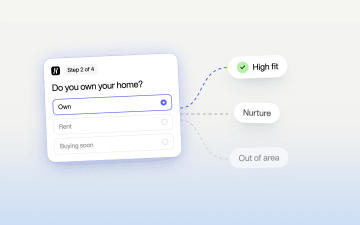
Qualify Leads Before They Submit: Stop Feeding Meta Junk
Cheap leads that sales never closes usually trace back to one setting: every form submit fires the same Lead event. Learn how to ask a few intent questions inside the form, route each answer to its own ending, and send Meta a separate event for the leads worth paying for.
Read more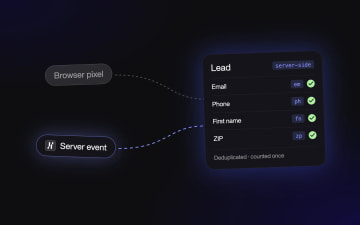
Meta Conversions API for Lead Forms: Fix Missing Conversions
If your CRM shows more leads than Events Manager, Meta is optimizing on half the picture. This guide walks through setting up the Conversions API for lead forms: which step fires the Lead event, how to map form fields for match quality, and how to deduplicate pixel and server events.
Read more
Best multi step form builders for 2026: a CRO scorecard roundup
Every multi-step form builder can paginate. This roundup scores Heyflow, Tally, Typeform, Jotform and WordPress and Shopify plugins on what separates them for paid traffic: testing, validation, ad signal, step analytics and routing.
Read more